UNLINE CLASSIC / INTERFACE UPDATE
More world.
Your view.
Open View, with a layout that works around you.
See more of the map while keeping your tools close. Open View expands the game area and places your panels and chat over it, with adjustable transparency and more control over the layout.
Find it in Options → Interface → Enable Open View.
Open up the view.
Watch the switch from the classic layout to Open View. The map expands, and the surrounding controls become panels over the game area.
In-game demonstration of Enable Open View and the panel opacity control. The additional boost and objective placement improvements are explained below.
Open video ↗ Original animation ↗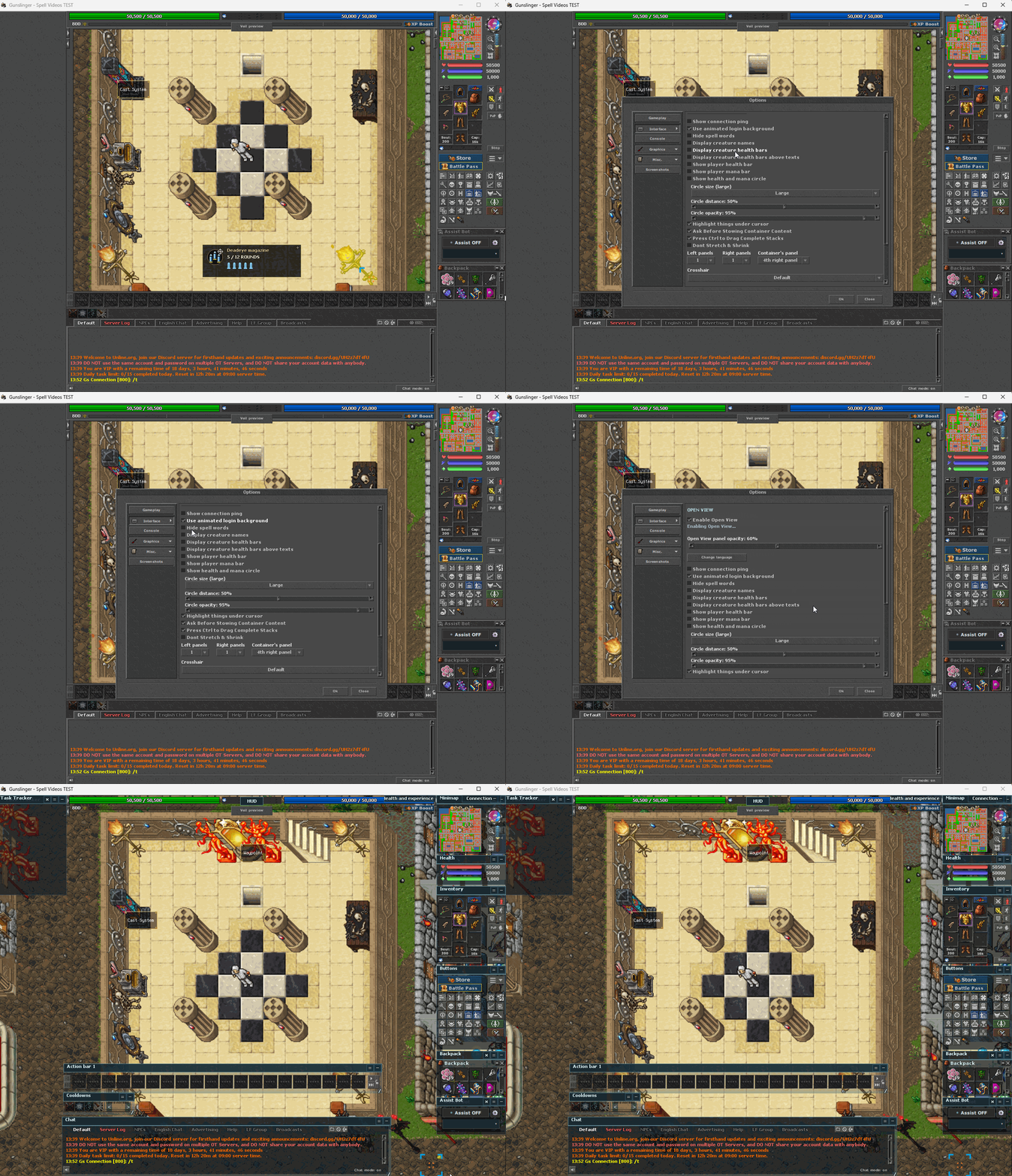
Make room for the world.
Open View gives the map more screen space. Side panels and chat sit over the scene, and the Open View panel opacity control lets you choose how transparent those panels appear.
- Move and resize panels to arrange your workspace.
- Collapse panels when you want to clear more of the view.
- Organize windows and containers in side columns without visible column backgrounds or column scrollbars.
- Keep the classic view available: turn Open View off whenever you prefer the traditional layout.
Keep the controls comfortable.
The rework gives chat, action bars and cooldown panels more flexible width and height adjustments. Resize the space they occupy while keeping their icons at their intended size.
- Chat: adjust its footprint to fit your layout while keeping conversations readable.
- Action bars and cooldowns: arrange your shortcuts and timers around the available map space.
- Typing and focus: fixes improve how the interface handles text entry and switching between windows.
- Window stacking: improved ordering and container resizing help prevent panels from disappearing behind one another.
Keep boosts and objectives in sight.
World Boost icons
World Boost icons now sit near the upper-left of the unobstructed map area, following the inner edge of the left panel columns. They adapt to the occupied panel space so the invisible columns no longer hide them.
The icons and their timers keep their normal size. The position also leaves the top health and experience strip clear.
Boss and dungeon information
Automatic boss and dungeon objective bars now sit lower on the left side of the visible map. Their placement accounts for chat, action bars and cooldown panels occupying the lower area, and keeps space between objectives and boost icons.
Panels that you have manually floated or docked continue to follow your chosen layout. Game messages and the Gunslinger magazine display also use positions intended to remain visible in Open View.
Set it up your way.
- Open Options and select Interface.
- Use Enable Open View to switch between the expanded and classic layouts.
- Adjust Open View panel opacity to choose the panel transparency.
- Arrange your panels, chat and bars around the map.
Open View is the default for profiles without an existing preference. Previously saved choices are respected, and you can change the option at any time.